Backup Data
-
The backup utility compresses your database into a zip file for archival and data security purposes.
-
Local Storage - Backups are stored on the hard drive of the PC. This is convenient and quick.
-
Off Site Storage - Backups are stored on a USB drive, a computer in another location or on a cloud storage service. This is more secure.
-
-
Backups will allow you to recover your database should the computer Church Windows is installed on experience a catastrophic failure.
-
Restoring a backup will load the data exactly as it was when the backup was taken.
Create a Backup
-
From the opening portal, click Administration and then Backup.

-
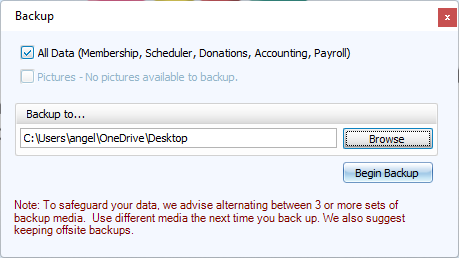
Select All Data to backup your database. Select Pictures to also backup uploaded images.
-
Click
 to choose a location where you'd like to save the backup. This will default to location you saved to last.
 -
Click

-
All Data will save with a file name of CWDataBackup MM-DD-YYY HH.MM.SS AM.zip with the date and time the backup was created.
-
Pictures will save with a file name of CWDataPicBackup MM-DD-YYYY HH.MM.SS AM.zip
-
-
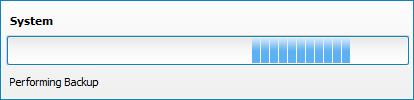
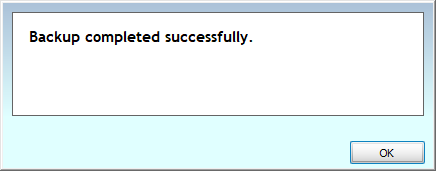
Do not close the program while the backup is being compiled. When it is finished, you'll see this message. Click OK.
Click the
 in the upper right to close the Backup window.